How to edit an AI video ad without starting over
Edit the part that is wrong. Caption size, placement, timing and other composition changes can be adjusted around existing generated material. A different presenter performance or voice recording needs new source material; it is not the same operation as changing the layout.
Describe the problem before choosing the fix
‘This ad feels wrong’ is hard to act on. ‘The caption covers the product when the package opens’ points to a specific change. Find the moment, name the element and decide what should be different. You may only need to move the text or change which shot is visible.
Watch the ad once without stopping, then return to the problem. A caption that looks oversized in a paused frame may still be readable in motion. Equally, text that looks fine on a desktop may be too small on the phone where someone will watch it.
Start with a composition edit
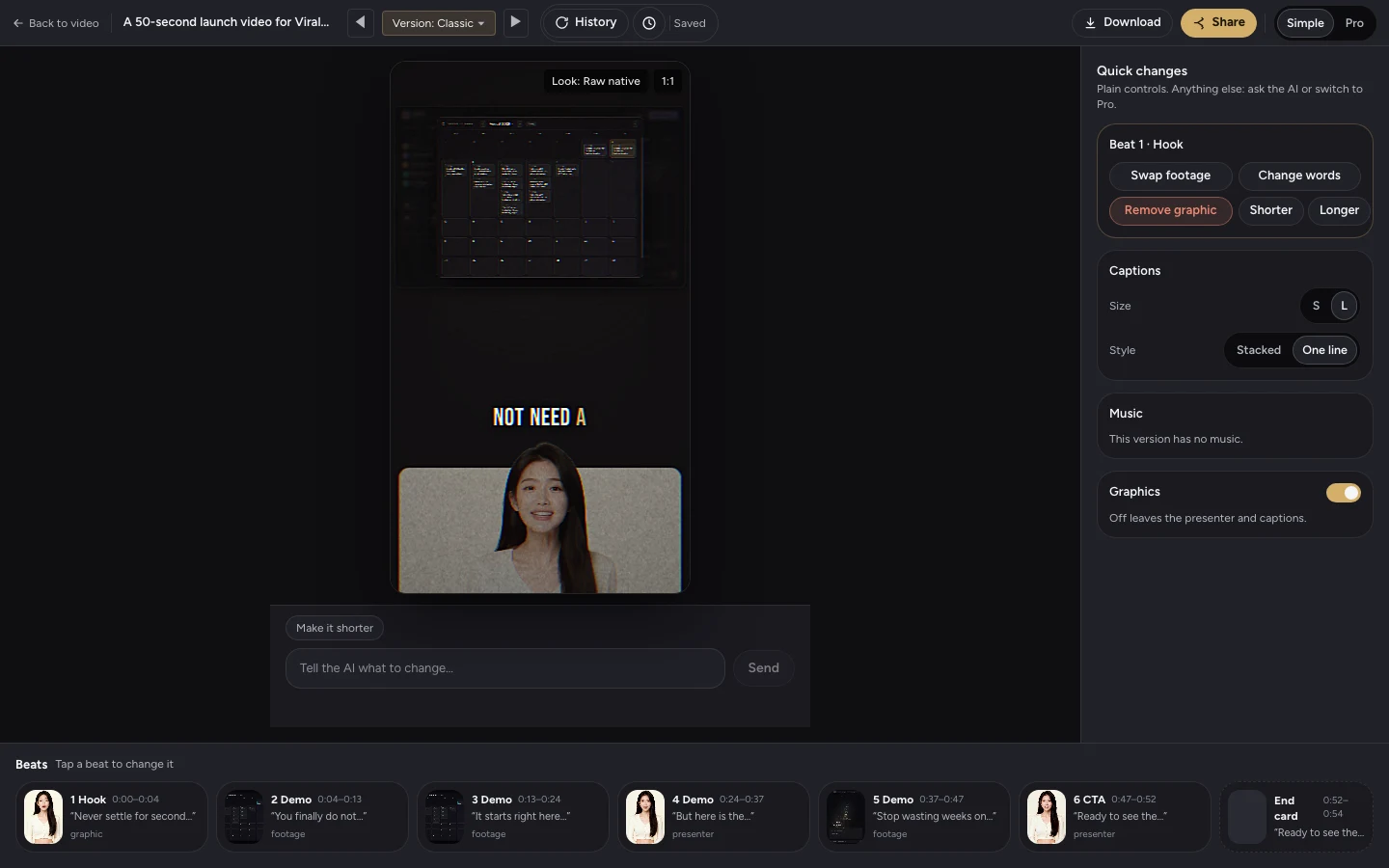
The Simple editor in the screenshot offers caption size and style choices, beat-level controls and a graphics toggle. Start with the control that matches the problem. If a graphic competes with the product, removing that graphic is a more precise intervention than asking for a completely different ad.
For a change that is easier to describe, use the editor’s chat. Write the target and the intended result: ‘Make the captions larger in the opening’ is more useful than ‘Make it better.’ Review what changed before continuing. A request in chat still needs your judgement.
Recognise when you need new material
A layout edit cannot create a different spoken performance from an existing take. If the presenter needs to say a different line or deliver it differently, new generated material may be required. The same applies when the footage you need was never uploaded.
Keep these requests separate. First decide whether the existing performance works. Then refine captions, graphics and timing around it. Replacing the performance late can change the timing that the rest of the edit depends on.
Check the exported file, not only the preview
After editing, download the version you intend to use and watch it from beginning to end. Check the audio, the captions and the final frame. If you export another aspect ratio, inspect that file too: cropping can hide a product or put text in an awkward position.
For our own launch ad, the editor capture shows the composition and beat controls around an existing presenter take. It demonstrates where those adjustments happen. It does not show a controlled experiment measuring editing speed, cost savings or ad performance.
- Confirm the intended version is selected.
- Watch the product-reveal moment and the final action.
- Listen for correct names and complete sentences.
- Check the export on the device and in the format you plan to publish.
Limits: editing is not unlimited regeneration
Available controls depend on the editor mode and the element being changed. Some requests require a new asset or a new generation. Review the current cost before approving paid work; do not assume every edit or export is free.
Editing gives you control over the finished presentation. It does not remove the need for accurate footage, a suitable presenter performance and truthful claims. If the source material is wrong, address that problem before polishing the layout.
Give your next ad a starting point.
Your footage. Your business. A finished ad you can refine.
Keep making it better.
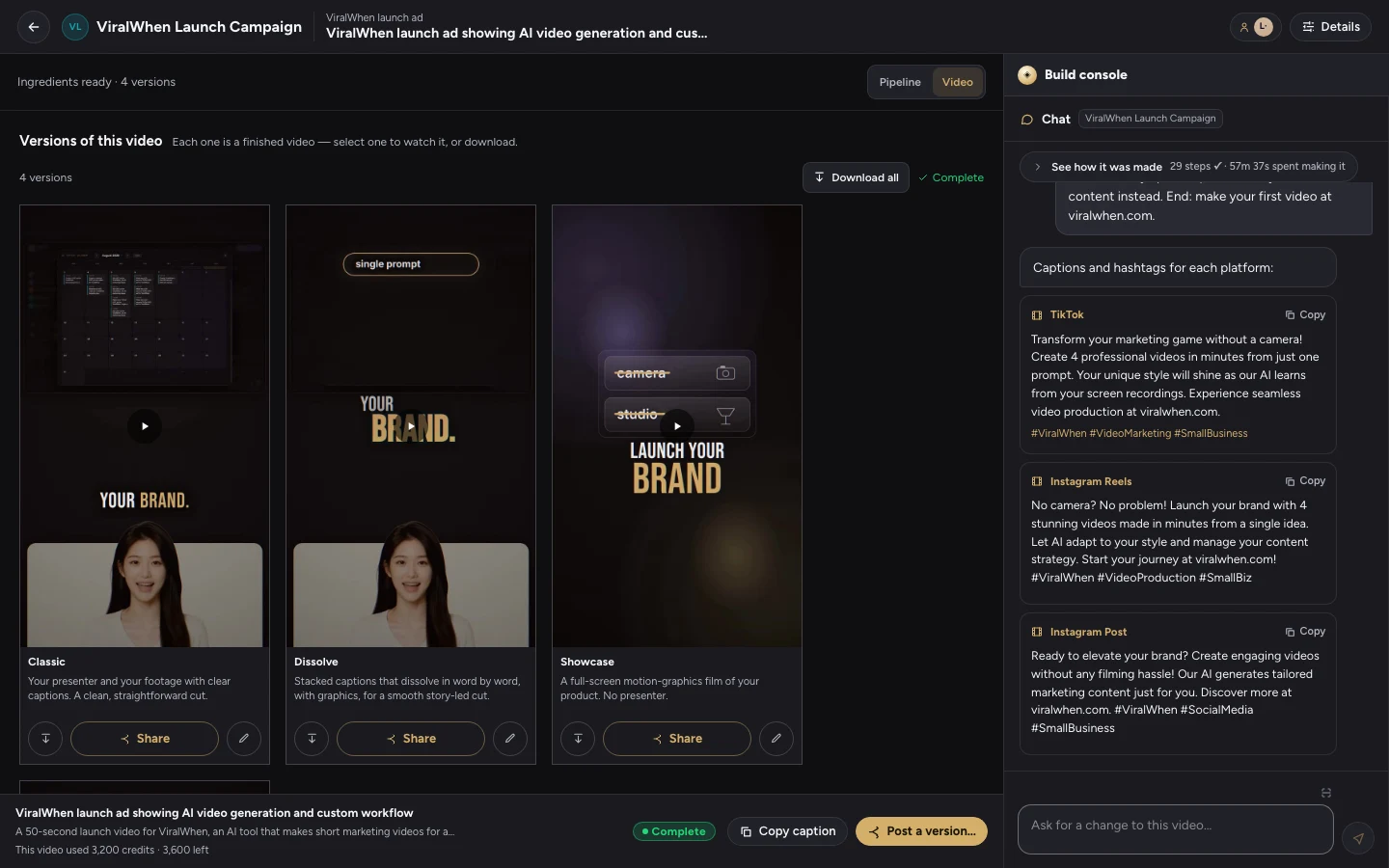
How to turn existing product footage into video ads
A practical workflow for turning your own clips into video ads: choose an offer, write a brief, review the versions and fix the details.
Read the article
What to put in an AI video ad brief
Give your video ad a clear audience, offer, evidence and next step. Use this worked brief to reduce guesswork before you generate.
Read the article