How to turn existing product footage into video ads
Start with footage that shows what you actually sell. Choose one offer and audience, give the AI a specific brief, then review the finished ad for product accuracy, captions and a clear next step. Keep the real product footage as the evidence; use AI to build the presentation around it.
Choose footage that answers a customer’s question
A product close-up, a demonstration and a result serve different purposes. Pick the clip that supports the offer you want to make. For a handmade mug, that might be the handle in use, the glaze in daylight or the packaging. A slow pan across a shelf tells the customer less about how the mug feels to use.
Keep the original files. Check that the subject is visible, the clip is steady enough to understand and there is room for captions. If the important detail is tiny in the middle of a wide shot, record a closer shot rather than asking an edit to recover detail that is not there.
Give the ad one job
Write down the audience, offer, evidence and next step before generating. ‘Make an ad for my shop’ leaves the system to guess the reason someone should care. A brief about a particular product gives it a decision to organise the ad around.
For example: ‘Make a vertical ad for our handmade mugs, aimed at people buying a housewarming gift. Use the attached pouring and packaging clips. Highlight the gift box. End by asking people to browse the collection. Do not invent delivery times, reviews or discounts.’ This is an illustrative brief, not a customer campaign or a measured result.
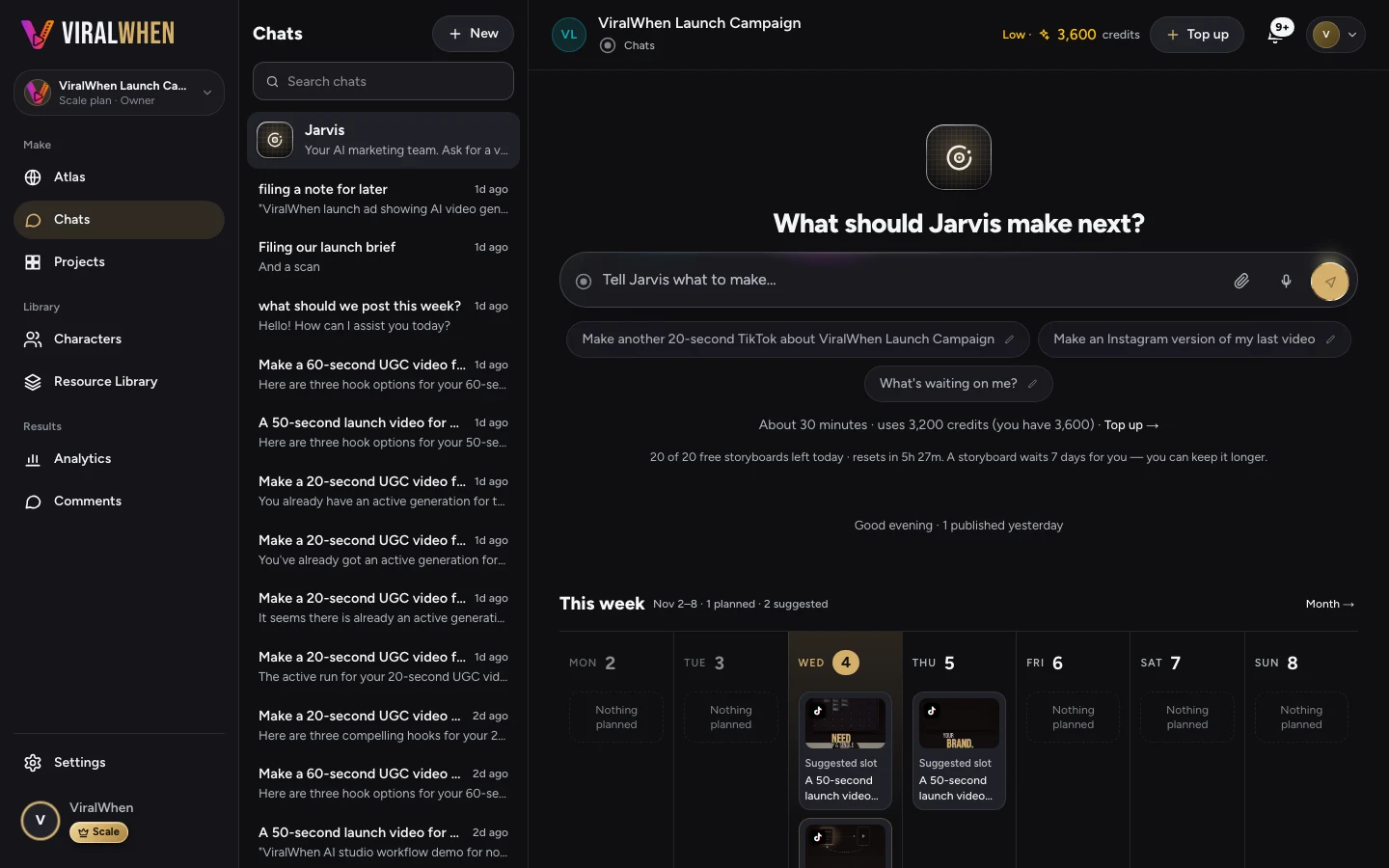
In ViralWhen, the website helps establish the business context and your uploaded assets supply the material. Check the facts the ad relies on, including product names, prices and availability. A correct-looking video can still contain a claim you would not want to publish.
Compare the finished versions against the same brief
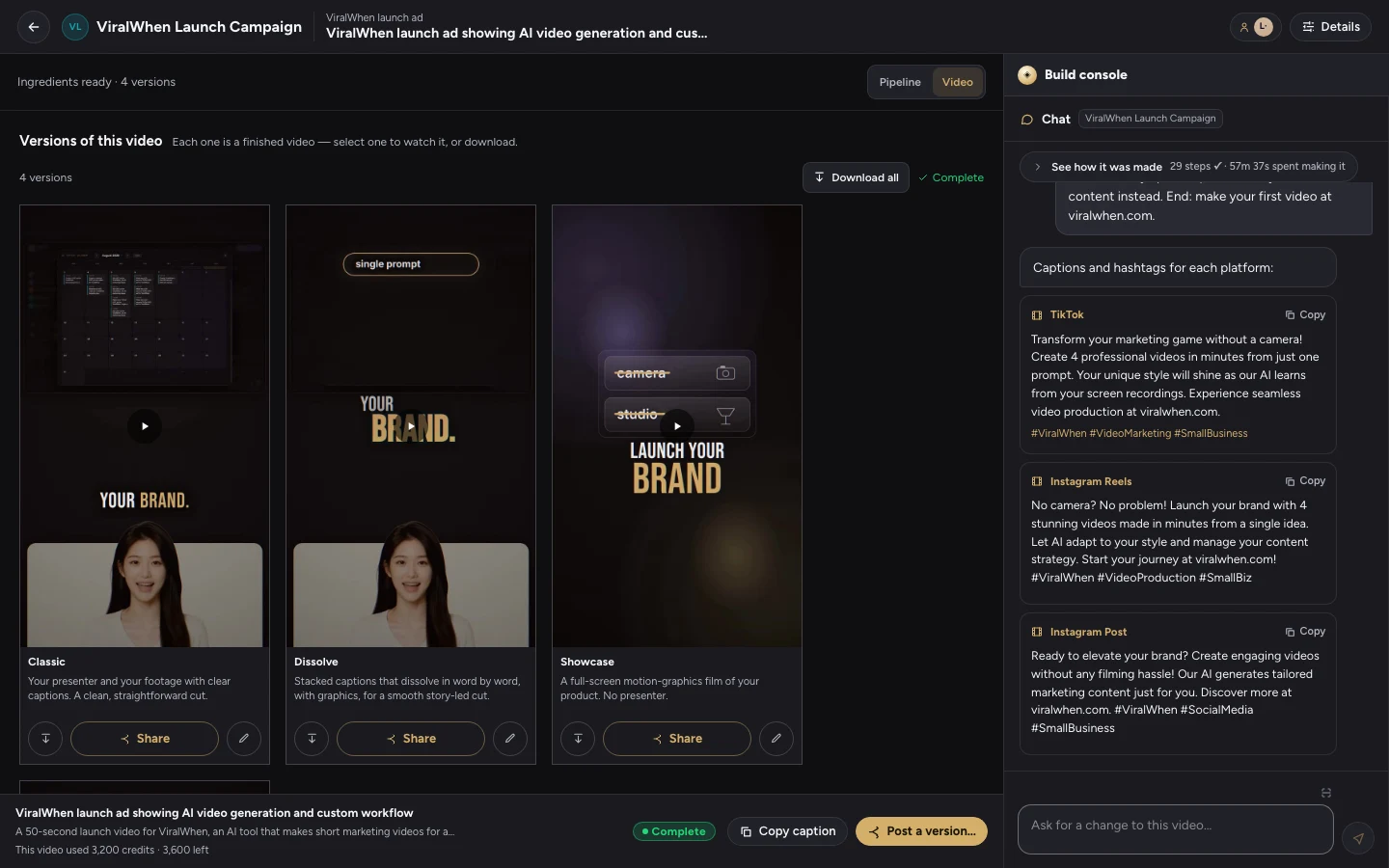
ViralWhen can return up to 4 versions of an ad, depending on your plan and selection. Different treatments let you compare how the same business message feels with a presenter, captions or motion graphics. Watch the actual output rather than choosing from a style name alone.
Our example is ViralWhen’s own launch campaign, shown above. It demonstrates the product interface and the versions that were delivered. It is not evidence that one version generated more sales than another. That requires a separate campaign test.
- Watch the opening without sound. Can you tell what is being sold?
- Listen to the voiceover. Are the product name and offer correct?
- Read every caption and on-screen claim.
- Check that the final action matches the page you will send people to.
Fix the specific problem before exporting
If a caption is hard to read or a shot stays on screen too long, start with that change. The editor lets you adjust the composition after generation. A different presenter performance is a different request from moving a caption, and may require new generated material.
Download the finished version and inspect the actual file on your phone. For a different format, check the crop and text placement again. A square export needs its own review; a readable vertical ad is not automatically a readable square ad.
Limits: a finished ad still needs your judgement
AI cannot turn missing product evidence into a truthful demonstration. Supply the footage you need, verify the claims and review the presenter’s delivery. Setting up an account is free; making a video requires payment. Check the current pricing and credit cost before starting.
A finished video is not a promised advertising result. Publish or test it with a clear objective, then use the response to decide what to change. This workflow covers making the creative, not proving that it converts.
Give your next ad a starting point.
Your footage. Your business. A finished ad you can refine.
Keep making it better.
What to put in an AI video ad brief
Give your video ad a clear audience, offer, evidence and next step. Use this worked brief to reduce guesswork before you generate.
Read the article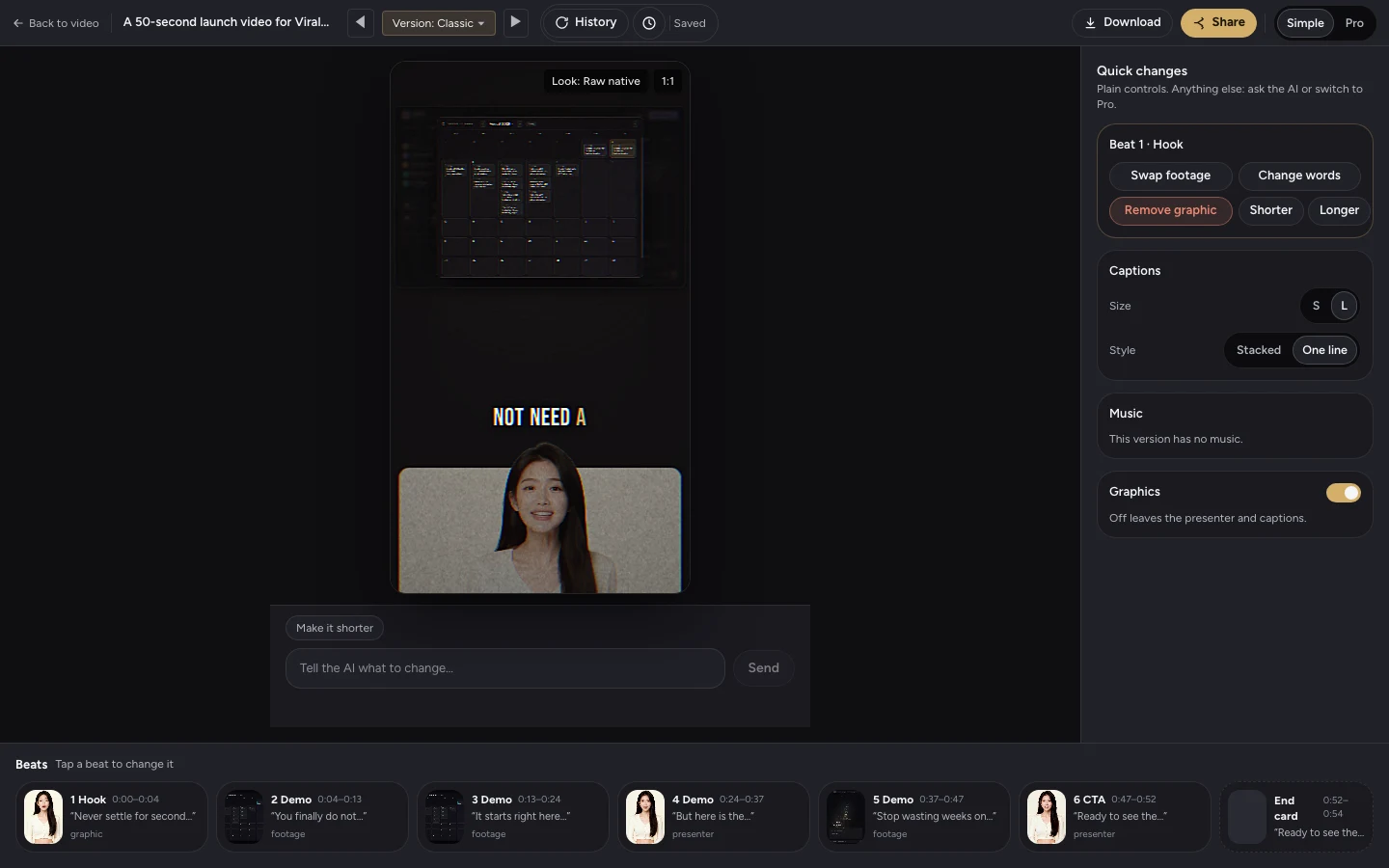
How to edit an AI video ad without starting over
A caption change and a new presenter take need different fixes. Learn what to edit in ViralWhen and when new generated material is needed.
Read the article